Registry - Show Computer and Username on Desktop (Windows XP)
By Default the "My Computer" icon on your desktop is called "MY Computer". What this tweak will do is name it according to the user logged in and the computers name.
First, before editing your registry remember to always back it up first, just incase you do something wrong. The registry when modified is an instant change and cannot be undone.
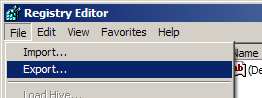
BACK UP REGISTRY: So to open the registry editor click on "START", "RUN", then type "REGEDIT" (No speech marks). The registry editor will now open, click on "FILE" then "EXPORT". From the save window that appear type in a file name (ie regback.reg), now click on "SAVE". Your registry has now been backed up.
TO CHANGE NAME: Now on the left hand panel click on "HKEY_CLASSES_ROOT", "CLSID" then "{20D04FE0-3AEA-1069-A2D8-08002B30309D}".
Next search for "LocalizedString" in the right hand panel, right click on it and select "Rename". change name to "LocalizedString.old".
Right click on blank white area in right panel and select "NEW" then left click on "REG_EXPAND_SZ" or "EXPANDABLE STRING VALUE". Name the new string value in right hand panel as "LocalizedString".
Now to set the value, double click on the string value and set it's value to :
"%USERNAME% on %COMPUTERNAME%"
for just username then use "%USERNAME%"
for just computer name then use "%COMPUTERNAME%"
Disclaimer: This information is provided as is and we cannot guarantee that editing the registry will not cause serious damage. You use this information at your own risk.
